Powered by Blogger.
Latest Post
Showing posts with label Windows 8. Show all posts

2007 Microsoft Office Add-in: Microsoft Save as PDF

Written By MANOJ J on Saturday, 27 July 2013 | 08:40


                This download allows you to export and save to the PDF format in eight 2007 Microsoft Office programs. It also allows you to send files as e-mail attachments in the PDF format in a subset of these programs.

Download >>


Boot Dos from USB


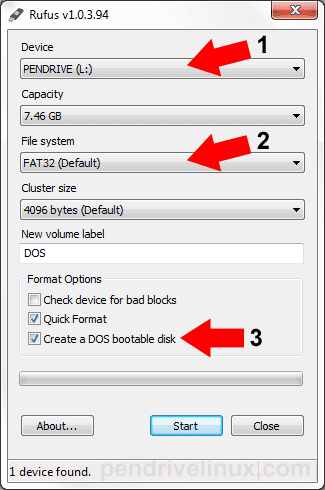
                Creating a DOS Bootable USB Flash drive to "Boot DOS from USB".a tool called Rufus.Rufus can also be used to create a Bootable USB version of a given distro from an ISO File.

Install application      Download >> Rufus

1) Select usb Device.

2) Select filesystem to FAT32

3) select Create a DOS bootable disk

4) Click start and enjoy.........


     more details  link

Multi OS are boot from pendrive


               YUMI - Multiboot USB Creator  is used to Multiboot ISOs.It can be used to create a Multiboot USB Flash Drive containing multiple operating systems, antivirus utilities, disc cloning, diagnostic tools, and more.

               YUMI uses syslinux to boot extracted distributions stored on the USB device, and reverts to using grub to Boot Multiple ISO files from USB, if necessary.


Download >>  YUMI - Multiboot USB Creator (Windows)
    

more details link          

vim install in Windows

Written By MANOJ J on Friday, 26 July 2013 | 07:19


Download Vim for Windows

Download >>   gvim72.exe  directly.

Configure gVim

  • On UNIX platform Vim configuration file is called .vimrc
  • On Windows platform the vim configuration file is called _vimrc
  • _vimrc file is located under $HOME/_vimrc. For example: C:\Documents and Settings\ramesh\_vimrc
  • Please note there is a _ (underscore) before vimrc on Windows platform

Simple tips

Written By MANOJ J on Monday, 22 July 2013 | 01:24

1.Switch to welcome screen

Press Win+L to switch to the Welcome screen.

2.Lock your workstation

Press Win+L to lock your workstation.

3.Switch user easly

You can switch users without going through the Welcome screen: From Task Manager, go to the Users tab, right-click a user, and select Connect.

4.Hibrernate computer

Hold down the shift key in the shutdown dialog to change "Stand By" to "Hibernate". Or just press H to hibernate instantly. You can even use the Power Control Panel to configure your power button to hibernate.

5.Disable password when resuming stanby

To disable the password when resuming from standby or hibernation, open the Power Control Panel and uncheck "Prompt for password after returning from standby" on the Advanced tab.

6.Shut down via Remote Desktop

To shut down via Remote Desktop, click the Start button, then type Alt+F4. 

Group apps in windows 8

Written By MANOJ J on Sunday, 21 July 2013 | 09:50


                The Start screen apps are initially displayed in a fairly random order, but if you'd prefer a more organised life then it's easy to sort them into custom groups.
                You might drag People, Mail, Messaging and Calendar over to the left-hand side, for instance, to form a separate 'People' group. Click the 'minus' icon in the bottom right corner of the screen to zoom out and you'll now find you can drag and drop the new group (or any of the others) around as a block.
               Right-click within the block (while still zoomed out) and you'll also be able to give the group a name, which - if you go on to add another 20 or 30 apps to your Start screen - will make it much easier to find the tools you need.

Handle basic navigation

Written By MANOJ J on Friday, 19 July 2013 | 08:37


Windows 8's interface is all colorful tiles and touch-friendly apps. And if you're using a tablet then it'll all be very straightforward: just swipe left or right to scroll the screen, and tap any tile of interest.
On a regular desktop, though, you might alternatively spin the mouse wheel to scroll backwards and forwards.

And you can also use the keyboard. Press the Home or End keys to jump from one end of your Start screen to the other, for instance, then use the cursor keys to select a particular tile, tapping Enter to select it. Press the Windows key to return to the Start screen; right-click (or swipe down on) apps you don't need and select Unpin to remove them; and drag and drop the other tiles around to organize them as you like.

Windows 8 keyboard shortcuts

Written By MANOJ J on Thursday, 18 July 2013 | 22:21


Knowing at least some of the Windows 8 keyboard shortcuts will make your Windows 8 experience much more enjoyable. Try to memorize these top Windows 8 shortcut keys.
  • Press the Windows key to open the Start screen or switch to the Desktop (if open).
  • Press the Windows key + D will open the Windows Desktop.
  • Press the Windows key + . to pin and unpin Windows apps on the side of the screen.
  • Press the Windows key + X to open the power user menu, which gives you access to many of the features most power users would want (e.g. Device Manager and Command Prompt).
  • Press the Windows key + C to open the Charms.
  • Press the Windows key + I to open the Settings, which is the same Settings found in Charms.
  • Press and hold the Windows key + Tab to show open apps.
  • Press the Windows key + Print screen to create a screen shot, which is automatically saved into your My Pictures folder.
 
Support : Creating Website | Johny Template | Mas Template
Copyright © 2013. test3 - All Rights Reserved
Template Created by Creating Website Published by Mas Template
Proudly powered by Blogger